1
Open the Alerts card
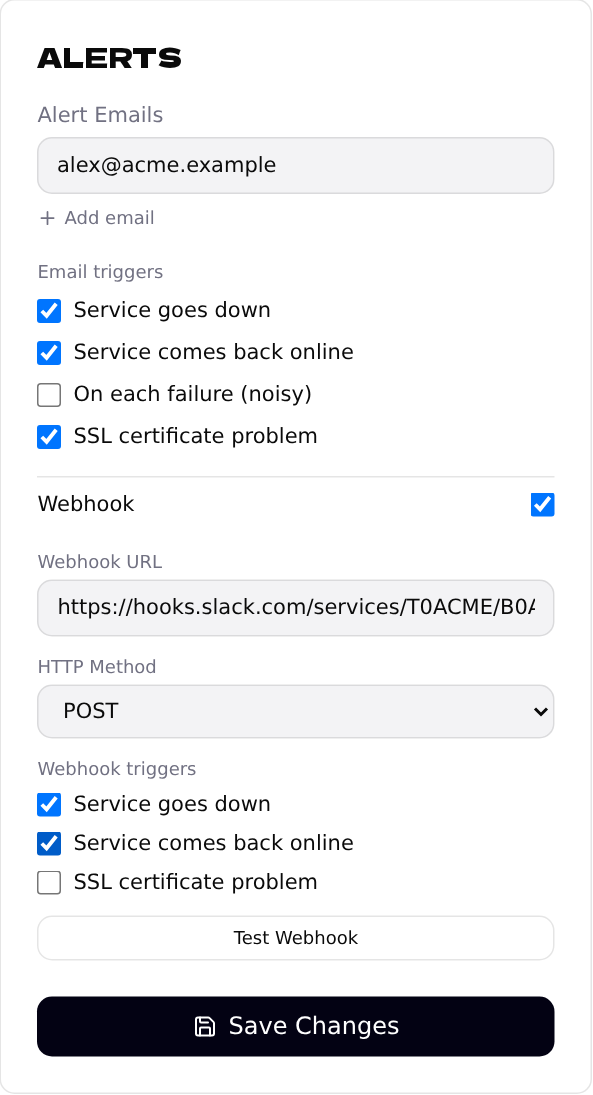
Every endpoint has its own alert settings. Open the endpoint from the dashboard and find the Alerts card on the right.
2
Add the people who should know
Click + Add email for every address that should be alerted — a colleague, a shared inbox, your phone's email-to-SMS address.
3
Choose when to be notified
- •Service goes down — one email when a problem starts.
- •Service comes back online — one email when it's fixed.
- •On each failure — an email for every failed check. Useful for debugging, noisy otherwise.
- •SSL certificate problem — when the site's certificate expires or is invalid.
We write only when something changes — not after every check — so the defaults won't flood your inbox.
4
Send alerts to Slack or your own system
Turn on Webhook and paste the URL — for example a Slack or Discord incoming webhook. Click Test Webhook to send a test message right away, then Save Changes.
5
Check the bell
The bell in the top bar lists every problem from the last 7 days across all your endpoints. Click one to open its endpoint, or Mark all read once you've seen them.
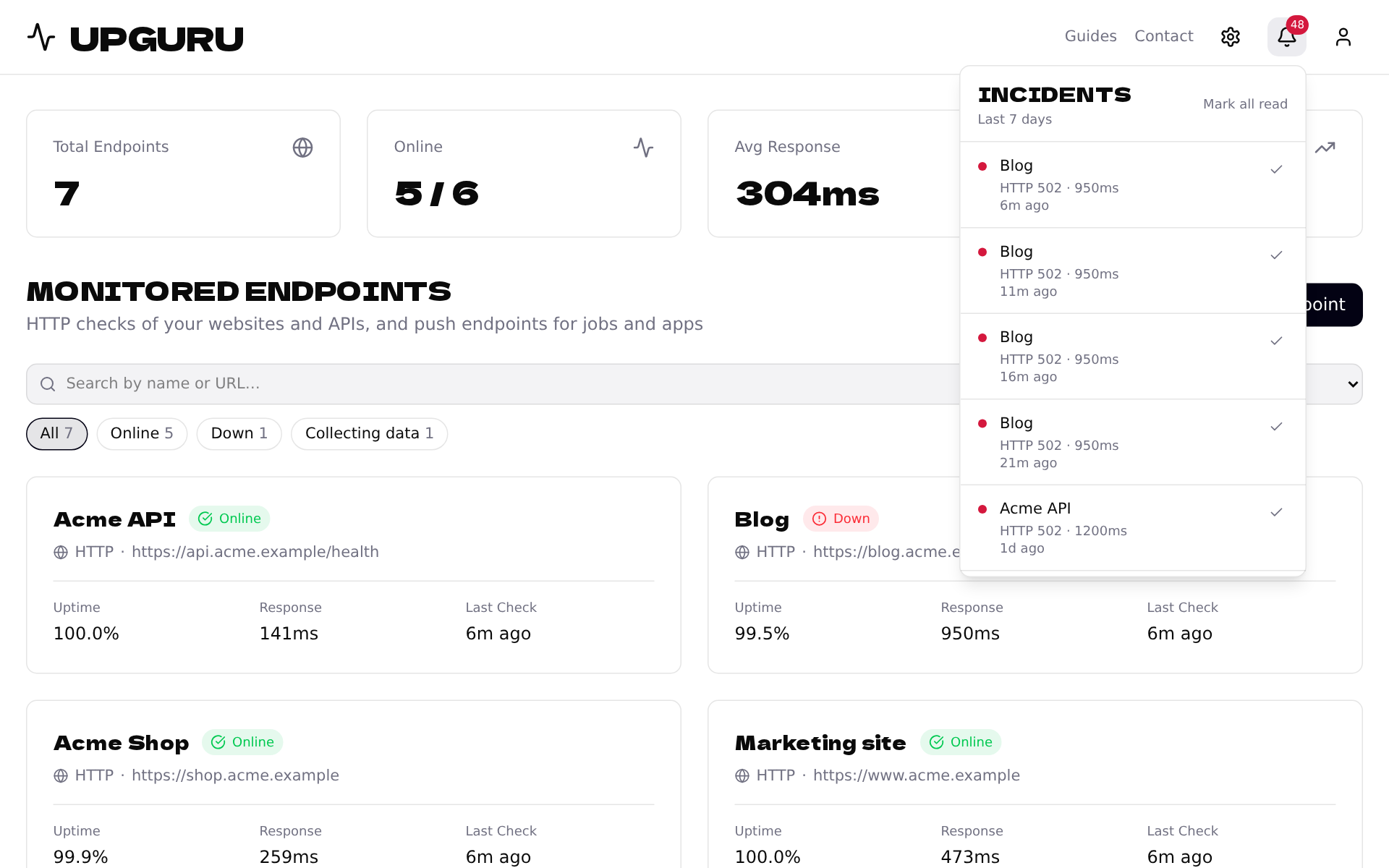
What you've marked as read is remembered in this browser only.