1
Pick a day or a range
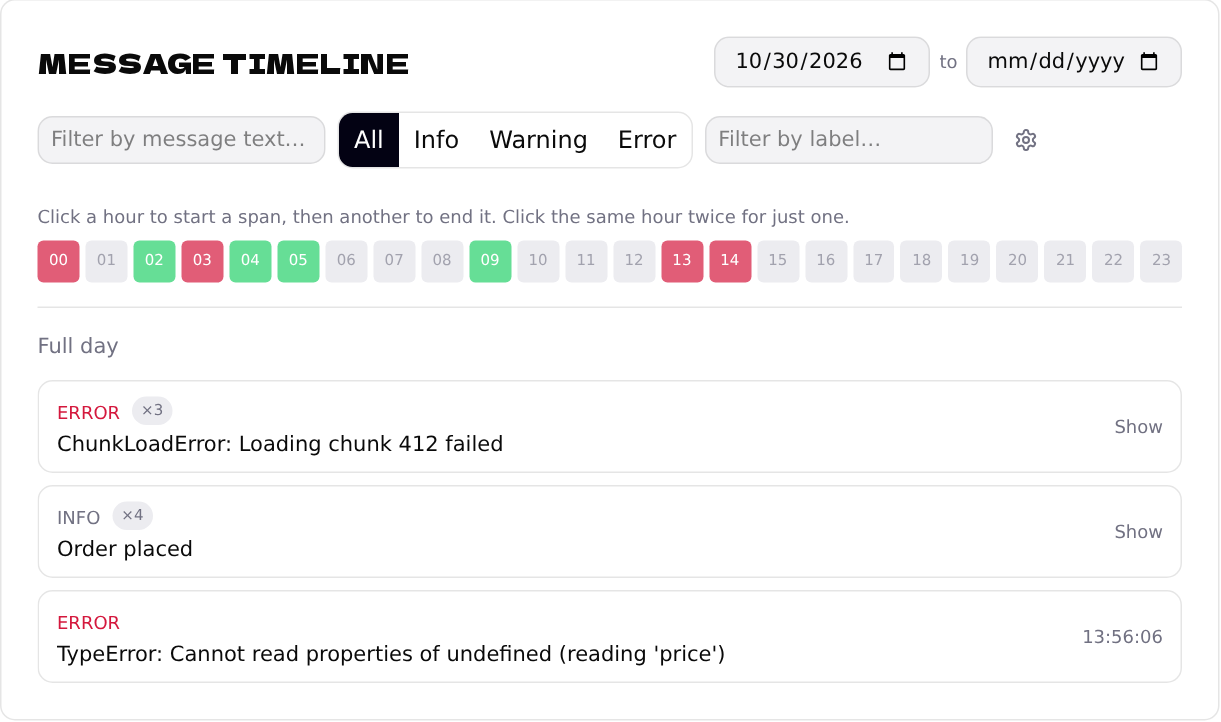
The Message timeline shows today by default. Pick another day under From, or add a To date to see up to 31 days at once.
- •Green — messages arrived.
- •Yellow — at least one warning.
- •Red — at least one error.
2
Narrow it down
- •Click an hour, then another, to see only that span. Click the same hour twice for just one hour.
- •Type into Filter by message text… to search the messages.
- •Use Info, Warning and Error to see only one kind.
- •Repeated messages are grouped with a count, like
×25; click Show for each time it was sent.
3
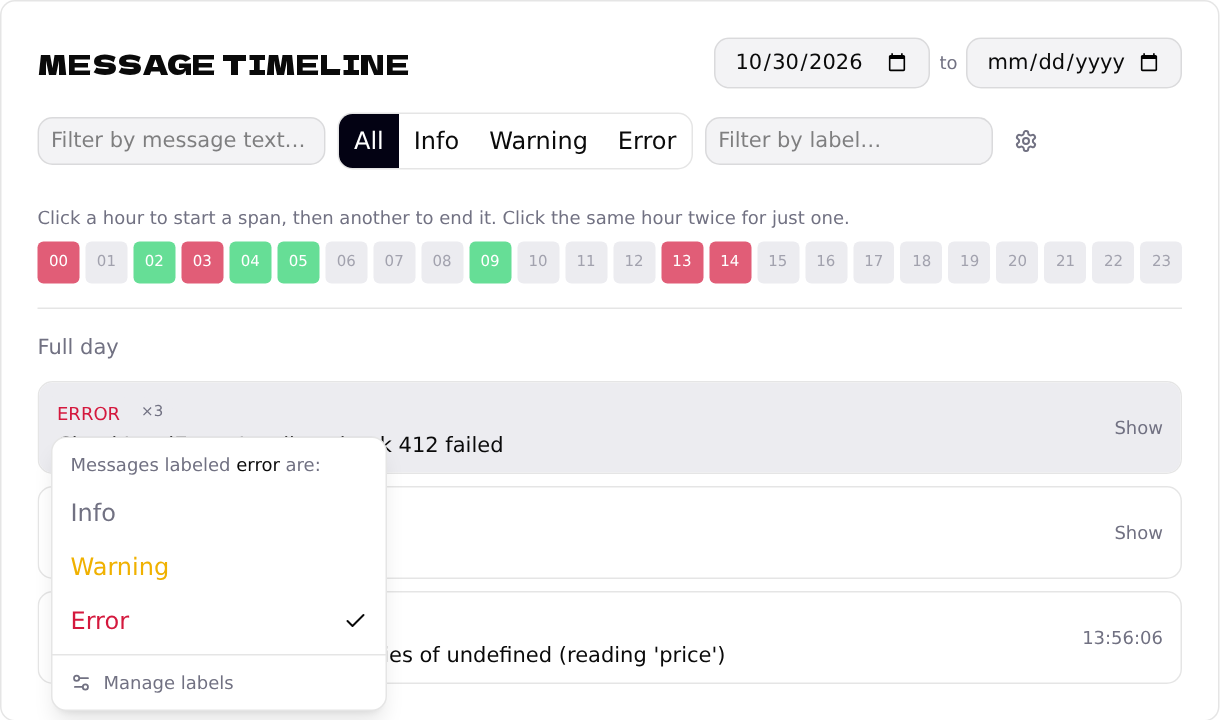
Change what a label means
Click a label on a message to decide whether it's info, a warning or an error. All messages with that label are recolored at once.
4
Act on insights
Insights at the top of the page point out what's worth a look:
- •A new error or warning that has never been seen before.
- •An error that is back after at least 30 quiet days.
- •A run that took much longer or shorter than usual, or wrote unusually much or little output.

Click Show error or Show run to jump to it, and the check mark to dismiss the insight once you've handled it.